
Quotes #
A quote tells your customer what a job will cost before you cut it. Carvio works the price out from what the project already knows (the material, the machining time of the toolpaths, the tools they use) and from your shop's rates, and puts it on pages that match the setup and tool sheets: your company header, the price, a drawing and a 3D picture of every sheet and side, and your terms. Quotes are saved with the project.
When the work is ordered or done, the same window makes the quote's invoice: the quote's prices under an invoice number, with the payments you have received and what is still owed.
The Quote window #
Open it with File > Quote..., Toolpaths > Quote... or the Job quote button (the price tag) on the toolbar. The form on the left holds everything the price is made of; the pages on the right show the quote exactly as it prints, and follow the form as you type.
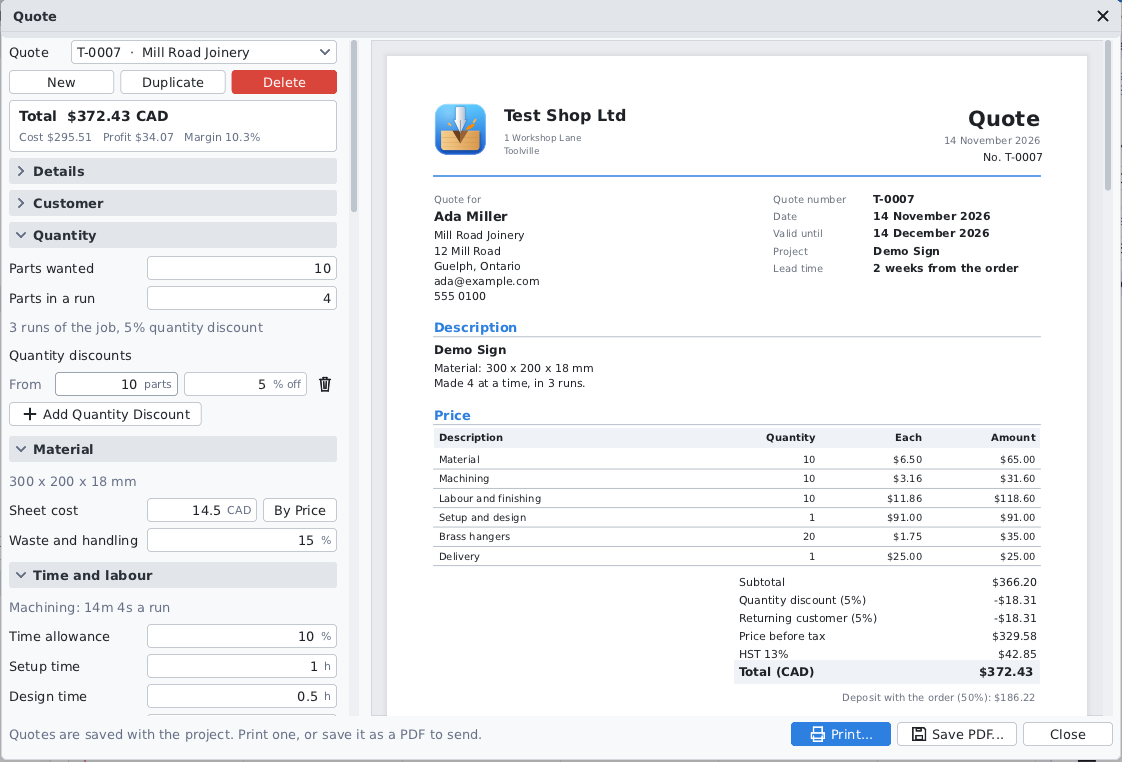
A project can hold several quotes: one for each customer, quantity or revision. Pick the one to
work on in the Quote list at the top. The window opens as a window of its own, which you can
keep beside Carvio, unless Open big windows as windows of their own is unticked in
Preferences. Esc closes it.
Printing a quote and saving it as a PDF need a licence, like the setup sheets; the trial shows the window and its pages.
New Quote #
Starts a quote for this project: it takes the next quote number, today's date, the job's name as its title and your shop rates. A project that has no quote yet shows the New Quote button alone; a quote number is only used when you click it.
Duplicate #
Makes a copy of the quote shown, as a new draft with the next number and today's date. Use it for a revision, or to quote the same job to another customer.
Delete #
Removes the quote shown from the project. The button asks Really Delete? first: click it again to delete.
Total #
The box under the buttons always shows where the quote stands: the total your customer pays, tax included, and under it what the job costs you, the profit and the margin (the profit as a share of the price before tax). The line turns red when the price is below the cost.
How the price is worked out #
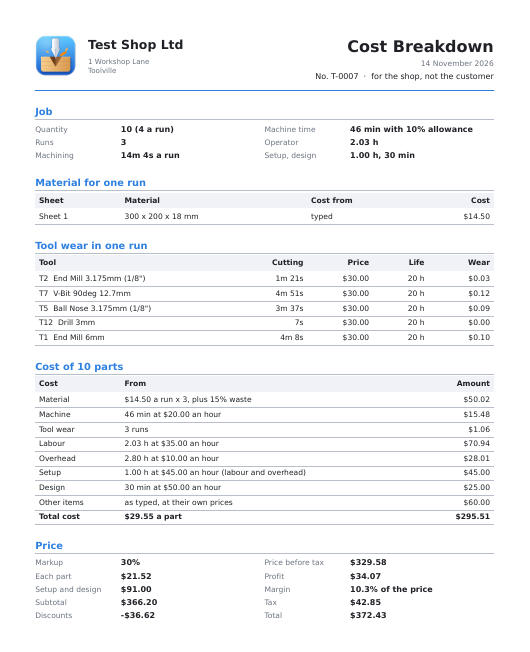
A quote is for a number of parts, made in one or more runs of the job. Carvio adds up what they cost to make, puts your markup on top, and then takes off the discounts and adds the tax.
| Cost | How it is counted |
|---|---|
| Material | Each sheet's cost for every run, plus the waste and handling percentage |
| Machine | The machining time (with the time allowance) at the machine rate |
| Tool wear | Each tool's cutting time as a share of its life, of its price |
| Labour | Loading, tool changes, standing by and finishing, at the labour rate |
| Overhead | The overhead rate for every hour the machine and the operator work |
| Setup | The setup time, once, at the labour and overhead rates |
| Design | The design time, once, at the design rate |
Then the price:
- The cost with the markup on it, shared over the parts, gives the price of one part. Setup and design are a line of their own, or are shared over the parts.
- The other items are added at the prices you type.
- If the sum is under the minimum charge, a line makes the difference up. That is the subtotal.
- The quantity discount and the quote's own discount come off the subtotal.
- The tax is added, and the deposit is worked out from the total.
The markup and your costs never appear on the customer's pages. The cost breakdown page shows them, for you.
Details #
What the quote is, and where it stands.
Number #
The quote's number, printed in the header and beside the date. A new quote takes the number prefix and the next number of your shop; you can type any number you like.
Date #
The day the quote was written, as year-month-day (2026-11-14). It prints in words (14 November 2026).
Valid for #
How many days the price stands. The quote prints the last day as Valid until. Set 0 for a quote with no end date.
Status #
Where the quote stands: Draft, Sent, Accepted or Declined. A draft follows the project: change a toolpath, the material or a tool and its times and costs change with it. From Sent on, the quote keeps the times, tools and material it went out with, so the price your customer has does not move while you keep working on the project. Making the quote's invoice sets a draft or sent quote to Accepted.
Update from the Project #
Shown for a quote that is not a draft, or that has its invoice: takes the project's times, tools and material as they are now. Costs you typed for the sheets are kept.
Title #
What is being made, in your customer's words. It is the heading of the description and the name of the parts in the price table.
Lead time #
When the work will be ready, such as "2 weeks from the order". It prints beside the date and under the terms.
Notes #
A note to your customer, printed at the end of the quote. Type ; to start a new line.
Customer #
Who the quote is for: Name, Company, Address, Email and Phone. They print
at the top of the quote under Quote for. In the address, type ; to start a new line.
Invoice #
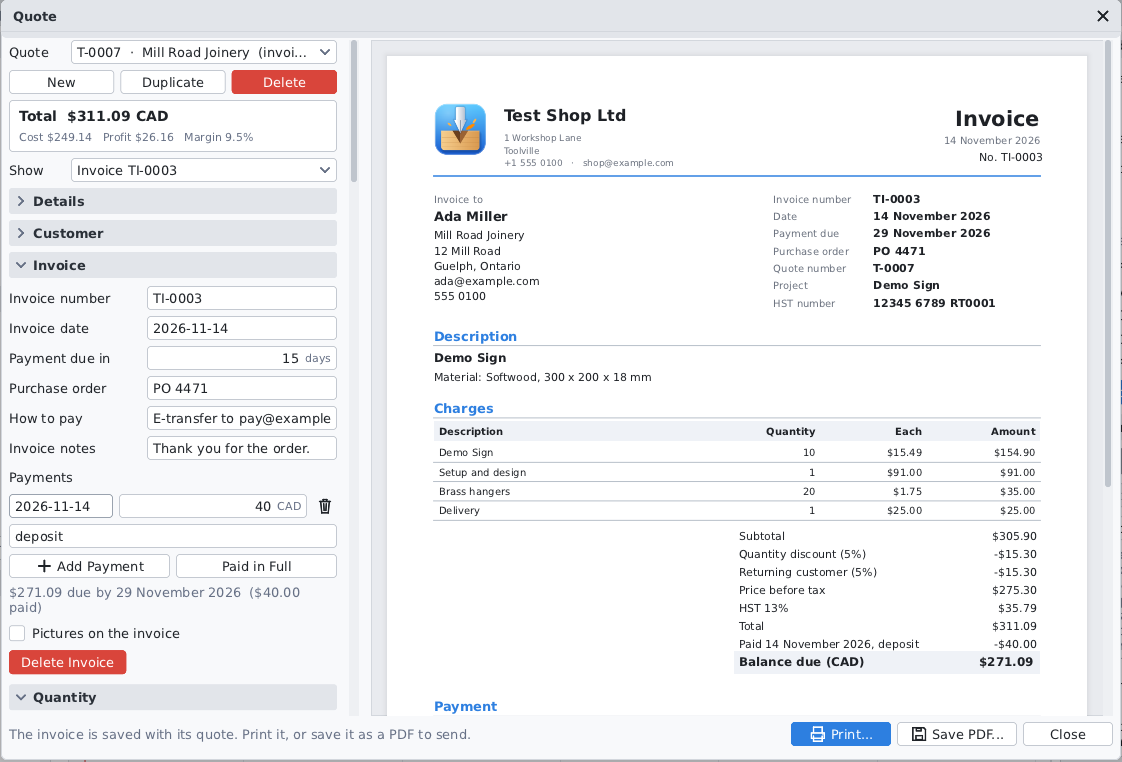
The bill for the quote's work. An invoice has the same lines, discounts, taxes and total as its quote, a number and a date of its own, the day the payment is due, and the payments you have received. A quote has one invoice; it is saved with the quote in the project.
Make Invoice #
The button under the total makes the invoice of the quote shown: it takes the next invoice number of your shop and today's date, the pages on the right turn to it, and the form gains its Invoice part. A quote that was still a draft, or out with your customer, is set to Accepted. From here on the quote keeps the times, tools and material it has, so the amount you bill does not move when the project changes. The form still changes the invoice: the quantity, the other items, the discount and the rates are the quote's.
Show #
Shown in place of Make Invoice once the quote has its invoice: whether the pages on the right are the Quote or the Invoice. Print... and Save PDF... take the one that is shown.
Invoice number #
The invoice's number, printed in the header and beside the date. A new invoice takes the invoice prefix and the next invoice number of your shop; you can type any number you like.
Invoice date #
The day the invoice was written, as year-month-day (2026-11-14). It prints in words.
Payment due in #
How many days your customer has to pay, counted from the invoice date. The invoice prints the last day as Payment due, and the form shows it under the payments. Set 0 for an invoice that is due when it is received. The number of days is kept with the quote's rates, so Save as Shop Rates makes it your shop's.
Purchase order #
Your customer's own order number, when they gave you one. It prints beside the invoice number.
How to pay #
How you want to be paid: where to send an e-transfer, who a cheque is made out to, your bank
details. It prints under Payment until the invoice is paid. Type ; to start a new line.
Like the rates, it is kept with the quote, and Save as Shop Rates
makes it the text every new invoice starts with.
Invoice notes #
A note to your customer, printed at the end of the invoice. Type ; to start a new line.
Payments #
The money you have received for the invoice. Each payment has the day it came (as year-month-day), its amount, and a few words to say what it was: a deposit, an e-transfer, a cheque's number. The bin button removes a payment. An amount below zero is money you gave back.
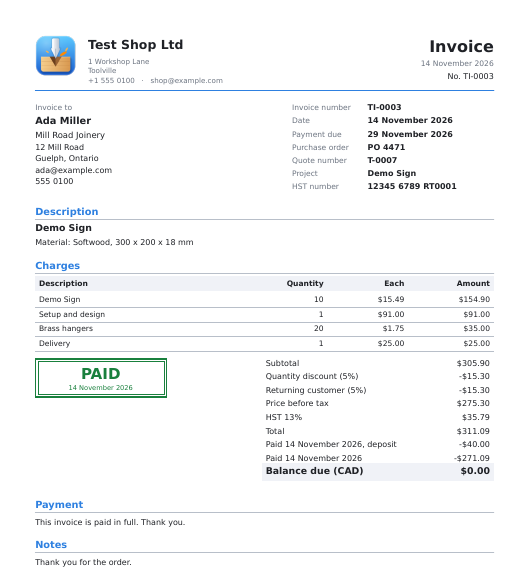
The invoice lists every payment under the total, and ends with the Balance due. Under the payments, the form says where the invoice stands: how much is due and by when, Overdue once the due date has passed, or Paid in full.
Add Payment #
Adds a payment dated today, for you to fill in. Record the deposit this way when it comes in.
Paid in Full #
Adds a payment of everything that is still owed, dated today. A paid invoice is stamped PAID with the date of the last payment, and says so in place of how to pay.
Pictures on the invoice #
Adds the quote's drawings and 3D pictures to the invoice, as its Pages options set them. Unticked, an invoice is the one page.
Delete Invoice #
Removes the invoice and its payments from the quote. The button asks Really Delete Invoice? first: click it again to delete. The quote stays as it is.
Quantity #
How many parts the customer wants, and how many the job makes at a time.
Parts wanted #
The number of parts the quote is for.
Parts in a run #
How many parts one run of the job makes: 1 when the project is one part, more when you have nested several on the sheets. Carvio runs the job as many times as the parts wanted need: 10 parts at 4 a run take 3 runs, and the material and the machining are counted for 3 runs.
Quantity discounts #
A percentage off for larger orders: From a number of parts on, that much off the subtotal. Add as many steps as you like; the biggest one the quantity reaches applies. The quote prints a small table with its price at every step, so your customer sees what ordering more would save. The bin removes a step.
Material #
What the sheets cost.
Sheet cost #
What one sheet of the material costs you. It is worked out from the material's price in the Material Database when it has one; type a cost here to use your own for this quote.
By Price #
Goes back from a typed sheet cost to the cost by the material's price.
Waste and handling #
A percentage added to the material for offcuts, a spoiled piece now and then, and the trouble of buying and storing it.
Time and labour #
The time the job takes, on the machine and by hand. The machining time itself comes from the toolpaths that are ticked.
Time allowance #
A percentage added to the machining time for what an estimate leaves out: slowing down in corners, tool changes, a pause to clear chips.
Setup time #
Hours spent once for the whole order before the first part is cut: fixtures, loading tools, a test piece. Charged at the labour rate plus the overhead rate.
Design time #
Hours spent once on drawing and programming the job, charged at the design rate.
Load and unload #
Minutes to put a sheet on the machine, set its zero and take it off again. Counted for every sheet in every run, and twice for a sheet that is machined on both sides.
Tool change #
Minutes to change a tool and set its length. Counted for every tool a sheet's toolpaths load.
Operator stands by #
The share of the machining time somebody watches the machine. 100% means the operator does nothing else while it runs; 0% means it runs alone.
Finishing #
Minutes of hand work on every part after it is cut: cutting tabs, sanding, a finish, packing.
Tools #
The tools the job uses, how long each cuts in one run, and what that wears off it. A tool's own price and life come from the Tool Database. A laser counts no wear unless it has a price and a life there.
Tool price #
What a cutter costs, for the tools that have no price of their own in the Tool Database.
Tool life #
How many hours of cutting a cutter lasts before it is replaced or sharpened, for the tools that have no life of their own. An hour's cutting with a 30.00 cutter that lasts 20 hours adds 1.50 to the cost.
Other items #
Anything else the customer pays for: hardware, a finish bought in, delivery. Add Item adds a line with a description, a quantity and a price each; the bin removes it. These lines are added at the price you type, with no markup.
Each part #
Ticked, the item's quantity is for every part made (2 hangers on each of 10 signs are 20). Unticked, it is for the whole order (one delivery).
Price #
What turns the cost into the price.
Markup #
Your profit, as a percentage on top of the cost. At 30%, a job that costs 100.00 is quoted at 130.00.
Minimum charge #
The least you take a job on for, before tax. When the price comes out lower, the quote adds a Minimum order charge line that makes up the difference. 0 means no minimum.
Round up to #
Rounds the price of a part (and the setup line) up to a multiple of this amount: 0.05, 1 or 5, for example. 0 leaves prices to the cent.
Setup and design on their own line #
Ticked, setup and design are one line of the price table, charged once, and the price of a part stays the same whatever the quantity. Unticked, they are shared over the parts, so a part costs less the more are ordered.
Discount #
A discount for this quote: a percentage of the subtotal (Discount), an amount (Discount amount), or both. Discount name is what the line is called on the quote, such as "Returning customer"; left empty it says Discount.
Deposit #
The share of the total you ask for with the order. The quote prints the amount under the total and in the terms. 0 asks for no deposit; 100 asks for payment in full.
Rates #
What an hour costs in your shop. These are the numbers to get right once; after that a quote is mostly the project's own figures.
Machine rate #
What an hour of the machine running costs: its wear, its upkeep and its power. A simple way to find it: the price of the machine and what you expect to spend keeping it running, divided by the hours you expect it to cut before it is replaced.
Labour rate #
What an hour of the operator's time costs.
Design rate #
What an hour of drawing and programming is charged at.
Overhead rate #
What the shop costs for every hour worked, whoever does the work: rent, heat, insurance, software, the tools that are not cutters. Divide a year of those bills by the hours you work in a year.
Tax and terms #
The currency the quote is in, the tax added to its price, and the conditions printed under it.
Currency #
The Currency code printed beside the total (CAD, USD, EUR...) and the Symbol written before every amount.
Tax name #
The sales tax added to the price: its name as it prints (HST, GST, VAT...) and its rate. A rate of 0 adds no tax.
Tax number #
Your tax registration number, printed under the terms.
Second tax name #
A second tax charged on the same price, where two apply (a federal and a provincial one, for example). Leave the name empty when there is none.
Terms #
Your conditions, printed under Terms after the validity date, the lead time and the
deposit. Type ; to start a new line.
Shop rates #
Every quote keeps its own copy of the rates, percentages, taxes and terms, so a quote you sent last year still shows last year's prices. Your shop rates are what a new quote starts with. They are kept in Preferences, on the Quote rates page.
Save as Shop Rates #
Makes this quote's rates, percentages, taxes and terms your shop's: every new quote starts with them, in every project. That includes the days an invoice is due in and how to pay.
Use Shop Rates #
Brings your shop's rates into this quote, in place of its own.
Quote defaults... #
Opens Preferences at Quote rates. Your shop's rates are there, and on the Quotes and invoices page how quotes and invoices are numbered, their terms, and what the pages of a new quote show.
Pages #
What the quote's pages show. Every page has your company header (set under Company in Preferences) with the quote's date and number, and a footer with your footer text and the page number.
Price shown as #
How much of the price the customer sees. One price for the parts shows a single line with the price of a part. Material, machining and labour splits that price into the three, in the proportion of what each costs you; the lines still add up to the same price, and your markup is not shown.
Drawings #
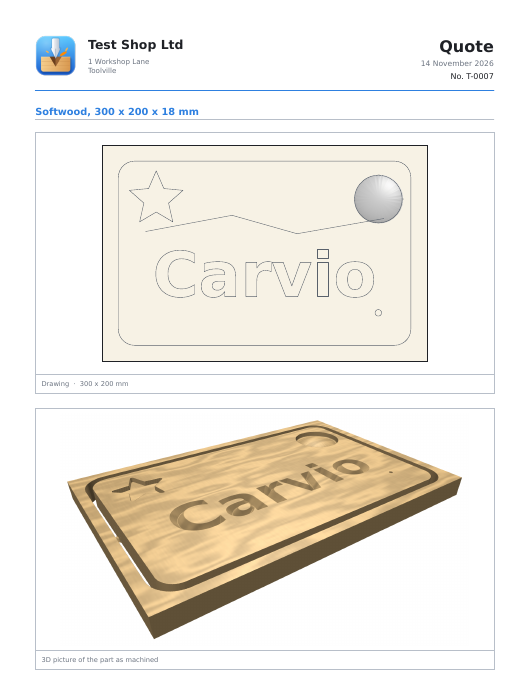
Adds a drawing of every sheet, and of both sides of a sheet that is machined on both: the material with its vectors and 3D components, as the 2D view shows them, with its size.
3D pictures #
Adds a picture of every sheet and side as it comes off the machine: the ticked toolpaths cut out of the material, as the Preview cuts them, seen from the isometric direction. On a double-sided job the other side is cut first and the board turned over, as on the machine. The pictures are made while the window is open (the line at the bottom says how far they are); Print... and Save PDF... wait for them.
Toolpaths on the drawings #
Draws the cutting moves of the toolpaths over the drawings, in their colours, as the setup sheet does. Unticked, the drawings show the design alone, which is usually what a customer wants to see.
Signature line #
Adds a line at the end of the quote for your customer to accept it: name, signature and date.
Cost breakdown for the shop #
Adds a last page for your own records, marked "for the shop, not the customer": the cost of every sheet, the wear of every tool, each cost and what it was counted from, the markup, the profit and the margin. Leave it unticked for the copy you send.
Paper #
The Paper size (A4 or Letter) and the Orientation of the pages. They are the same setting as the setup sheets'. On landscape pages a sheet's drawing and 3D picture sit side by side; on portrait pages one is above the other.
Footer #
A line printed at the bottom of every page of a quote, such as "Thank you for your business".
Zoom #
How large the pages are shown in the window: fitted to its width, or at a fixed size.
Company settings... #
Opens Preferences at the company's name, address and logo, which the header of every page shows.
Printing and saving a quote #
Print... sends the quote to a printer, as printing the sheets does. Save PDF... writes it as a PDF file to send to your customer. Both wait until every 3D picture is made. While Show is on Invoice, they print and save the invoice.
Remember to save the project afterwards: the quote, its customer, its prices, its invoice and the payments are kept in the project file.