
Import and export settings #
Edit > Import and Export Settings... saves your settings in one file and reads them back on another computer, phone or tablet, so each one you use is set up the same way: the same preferences, machines, post processors, tools and materials. Preferences > General has the same button.
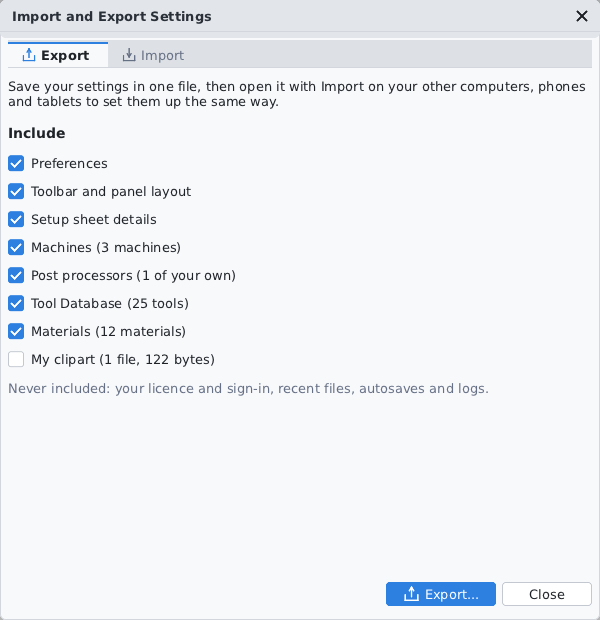
Pick Export or Import at the top of the window. Both list the same parts, each with a
tick box, so you choose what goes into the file and what comes out of it. Esc closes the
window.
Tip: Export on the computer you set up first, put the file somewhere your other devices can reach (a USB stick, an email to yourself, a cloud drive or a shared folder), then open it in Carvio on each of them.
Export #
Tick the parts to save and click Export..., then choose where the file goes and its name
(Carvio suggests one with the device's name and today's date). The file ends in
.carviosettings. On a phone or tablet the system's file picker opens, so you can save it
straight to a cloud drive or a shared folder.
Your licence and sign-in, your recent files, autosaves and logs are never in the file: each device signs in on its own.
The parts #
What each part of the list holds. Export and Import list the same parts.
Preferences #
Everything on the pages of Preferences, apart from the things that belong to the computer itself (file previews in the file manager), and the stock resolution unless you picked it yourself (the right one depends on the device's graphics).
Toolbar and panel layout #
The buttons on the main toolbar, the tabs and sections of the side panels and their widths, the App scale, and where Help and the big windows open. When the file comes from a different kind of device (a phone's file opened on a computer, or the other way round) this part starts unticked on Import, because a layout made for a small touch screen rarely suits a big one.
Setup sheet details #
Your company name, address, phone, email, website, sheet footer and paper, from Preferences > Setup sheets, with your logo: the picture itself is in the file and is copied into Carvio's settings folder on the other device. Your shop rates for quotes, the quote and invoice number prefixes and the next quote and invoice numbers travel with them.
Machines #
Your machines from Machine Setup with everything in them (travel, jog steps, spindle, probe, macros, start-up lines), the machine you used last, the tool change and probing choices of the Run tab, the console's choices and your gamepad's buttons.
Each device keeps its own port: a machine on a USB cable is COM3 on one Windows computer
and something else on a tablet, so importing never changes the port of a machine you already
have. A new machine from a different kind of device comes in without one; pick it in Machine
Setup.
Post processors #
The post processors you made or imported yourself (those in the posts folder of Carvio's
settings) and the one you used last. The post processors that come with Carvio are not in the
file: every Carvio has them.
Tool Database #
Every tool in the Tool Database with its cutting values for each material, the Tool Database's folders, and the tool and settings each toolpath form remembers.
Materials #
The materials list of the Tool Database's Materials window.
My clipart #
The clipart you added to your own library, with its folders. It can make the file large, so it starts unticked on Export; its size is shown beside it. Clipart that comes with Carvio is not in the file.
Import #
Click Choose file... and pick a .carviosettings file, or just open the file: a
double-click in your file manager, dropping it on Carvio's window, or Open with Carvio on a
phone or tablet all open this window with the file ready to import.
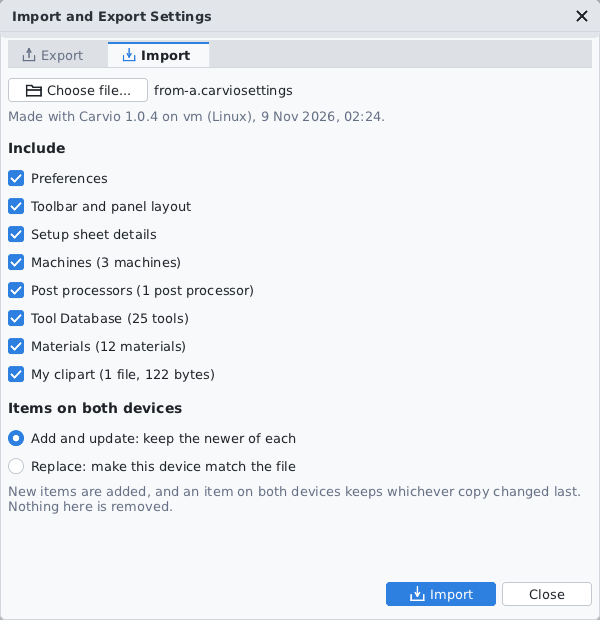
Carvio shows which Carvio and which device made the file and when, and ticks every part it holds. Untick what you don't want, choose how items on both devices are handled, and click Import. A line for each part then says what changed: how many machines, tools or materials were added, updated or kept.
A file from a newer Carvio can hold parts this version does not know yet; they are listed as left out, and the rest imports as usual. A file that needs a newer Carvio altogether says so: update Carvio, then import it.
Add and update #
The usual choice. Machines, tools, materials, post processors and clipart that are only in the file are added. One that is on both devices keeps whichever copy was changed last: a tool you changed on this device after the file was made stays as you changed it. Nothing on this device is removed.
Carvio knows an item on both devices even after it was renamed on one of them, and matches items you set up separately on each device (the same tool name, type and diameter; the same machine name), so importing twice never makes copies.
The parts with settings (Preferences, the layout, the setup sheet details and the choices that go with machines, posts and tools) take the file's values when they are ticked.
Replace #
Makes this device match the file: its copy of every item wins, and machines, tools, materials and post processors that are not in the file are removed from this device. Clipart is only ever added, never removed. Use it to set up a device exactly like another one.
Undo import #
Before every import, Carvio saves what it is about to change in a backup in the backups
folder of its settings (the last five are kept). Undo import, under the result, puts all of
it back as it was before the import. Clipart that came in stays in your library; delete it in
the Clipart tab if you don't want it.